

You find a photo on Instagram — a great shot from a travel account, a recipe layout, a design you want to reference later. You take a screenshot. Two seconds later you zoom in and it’s already blurry. That’s the problem with screenshots: they capture your screen resolution, not the original file. The good news is there’s a much simpler way. A dedicated instagram photo downloader pulls the original JPG straight from Instagram’s servers — same dimensions, same sharpness, no compression added on top. This guide covers everything: single photos, carousels, and how to do it on any device.
Why Screenshots Don’t Work for Instagram Photos
Before getting into the how-to, it’s worth understanding why screenshots are such a bad option for saving Instagram photos.
|
Method |
Quality |
What you lose |
| Screenshot | Low — screen resolution only | Sharpness, original dimensions, metadata |
| Instagram Save (bookmark) | Original — but stays in app | Can’t use file outside Instagram |
| Right-click save (desktop) | Sometimes works, often blocked | Unreliable, may get low-res version |
| Photo downloader tool | Original JPG, full resolution | Nothing — this is the right method |
The bottom line: if quality matters at all, a downloader tool is the only reliable option.
How to Download a Single Instagram Photo
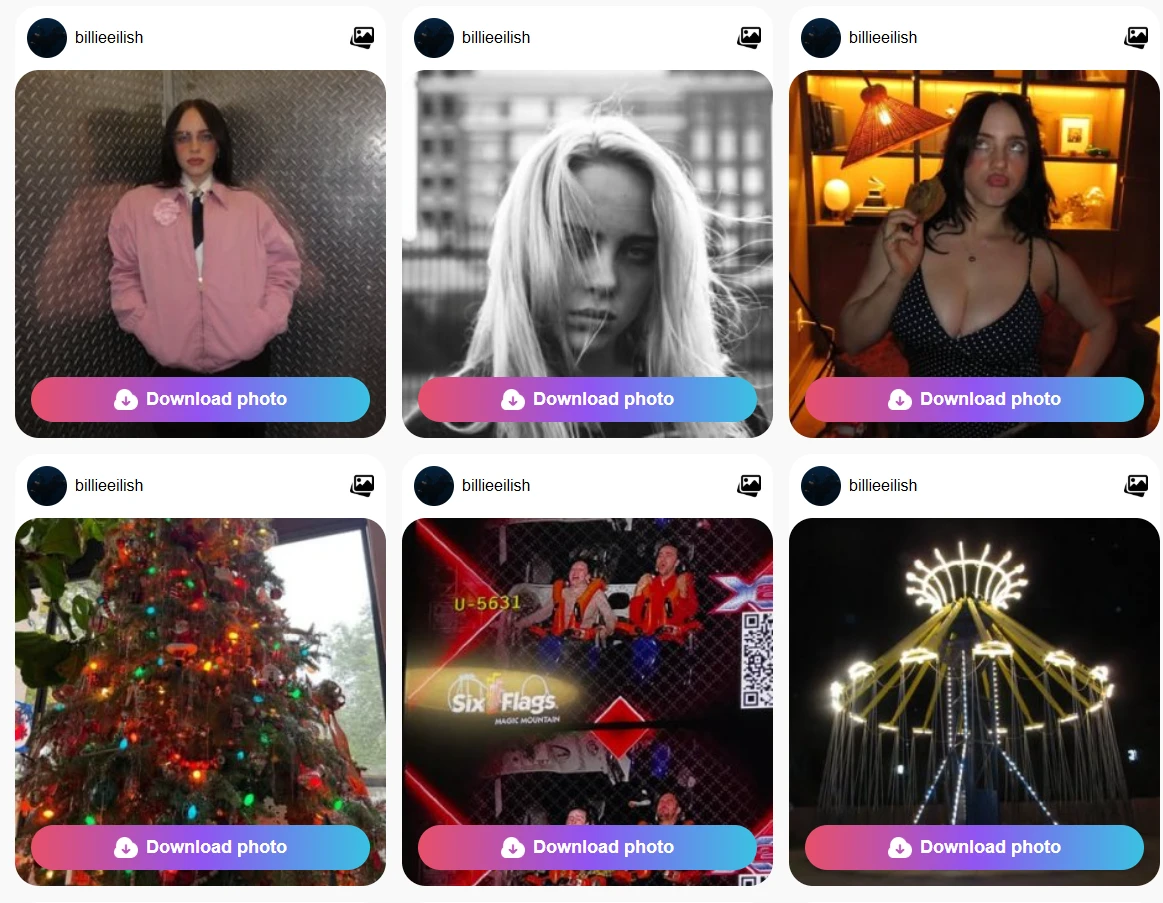
The process is the same on any device. You need the post link and the instagram photo downloader page — that’s it.
- Open Instagram and find the photo you want to save.
- Tap or click the three-dot menu (••• on iOS, ⋮ on Android, or the icon below the post on desktop).
- Select Copy Link.
- Open your browser and go to reelsvideo.io/instagram-photo-downloader.
- Paste the link and click Download.
- The photo saves to your device as a JPG in its original resolution.
How to Download Instagram Carousel Posts (All Photos at Once)
Carousel posts — the ones where you swipe through multiple images — are where most people get stuck. Saving them one by one is annoying. The good news: the downloader handles the whole carousel in one go.
The steps are exactly the same as for a single photo. Copy the link to the carousel post, paste it into the tool, and click Download. Instead of one file, you’ll get all the images from that post — up to 10 — ready to download individually or all at once. The order is preserved exactly as it appears on Instagram.
This is particularly useful for:
- Step-by-step tutorials spread across multiple slides
- Recipe posts where each slide is a different step or ingredient
- Before/after comparisons
- Design or photography portfolios where each image is part of a series
- Saving your own carousel posts as a backup
Downloading Instagram Photos on iPhone
iPhone users sometimes run into a quirk where tapping Download opens the image in Safari instead of saving it. Here’s how to handle it:
- Copy the Instagram post link as described above.
- Open Safari and navigate to reelsvideo.io/instagram-photo-downloader.
- Paste the link and tap Download.
- If the image opens in the browser instead of saving, long-press it and choose Save to Photos or Add to Photos.
- The photo is now in your Camera Roll at full quality.
Downloading Instagram Photos on Android
- Copy the post link from the Instagram app.
- Open Chrome (or your preferred browser) and go to reelsvideo.io/instagram-photo-downloader.
- Paste the link and tap Download.
- The JPG file saves directly to your Downloads folder and should appear in your Gallery app.
Downloading Instagram Photos on PC or Mac
- Open Instagram in your browser and navigate to the post.
- Click the three-dot icon and select Copy Link.
- In a new tab, go to reelsvideo.io/instagram-photo-downloader.
- Paste the link and click Download.
- The file saves to your Downloads folder as a standard JPG.
From there you can open it in any image editor, import it into Lightroom, use it in a presentation — whatever you need.
What Quality Will the Photo Be?
The tool downloads whatever Instagram has on its servers, which is the highest quality version of the photo available through the platform. Instagram does apply some compression when content is uploaded — typically photos end up at 1080px on the longest side for feed posts. That’s the version you’ll get: the best available, not the raw camera file, but noticeably sharper than any screenshot.
For reference, Instagram’s standard photo dimensions:
- Square: 1080 × 1080 px
- Portrait: 1080 × 1350 px
- Landscape: 1080 × 566 px
A Few Things Worth Knowing
Only public accounts. The tool only works with posts from public Instagram profiles. Private account content can’t be accessed — this is by design and respects user privacy settings.
No login needed. You don’t need to sign into Instagram or create any account to use the downloader.
Personal use. Downloading photos for offline viewing, inspiration boards, or personal reference is generally fine. Reposting or using someone else’s photos commercially without permission is a different matter — always credit creators and get permission if you plan to publish their content.
Get the Photo, Not a Screenshot
Screenshots have their place, but for Instagram photos they’re just the wrong tool. If you actually want the image — at the quality it was posted — use a proper instagram downloader. Copy the link, paste it, download. The whole thing takes about 20 seconds and you get the real file.